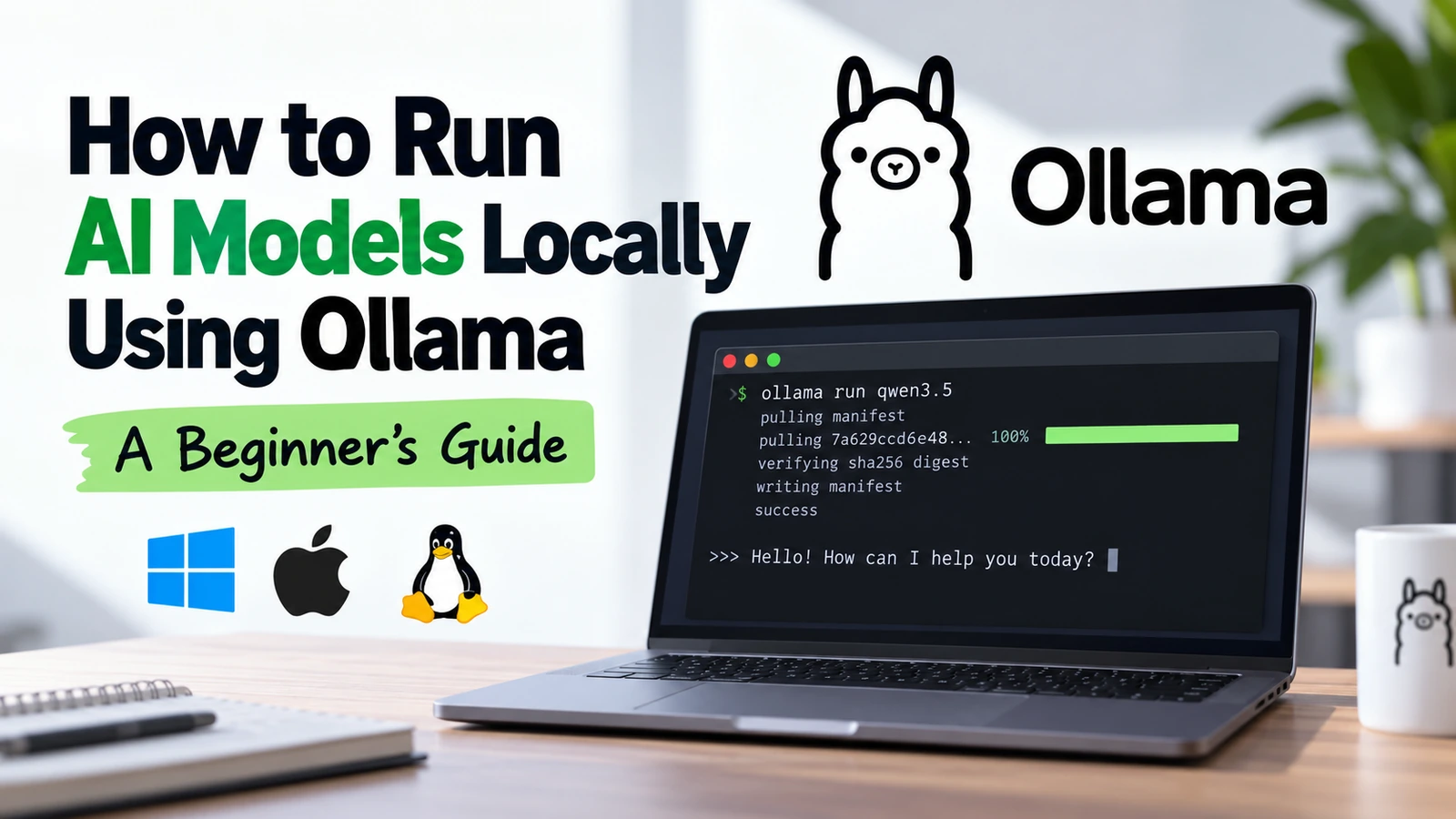
If you’ve wanted to try an AI model on your own computer instead of using a hosted chatbot every time, Ollama is one of the easier ways to get started.
You install Ollama, download a model, and run it from the terminal. There is no need to manually set up Python environments, model runtimes, or a long list of dependencies just to get a basic local model working.
In this guide, I’ll show you how to run AI models locally with Ollama on Windows, macOS, and Linux. We’ll also look at model sizes, RAM and GPU requirements, useful commands, privacy, and a few things that are easy to miss when you’re using Ollama for the first time.
What Is Ollama?
Ollama is a tool for downloading and running AI models on your own computer.
The part that makes it useful for beginners is the command-line workflow. Instead of downloading model files manually and figuring out how to load them, you can usually start with a command like this:
ollama run qwen3.5If the model isn’t already on your computer, Ollama downloads it first. After that, you can start chatting with it directly from the terminal.
Ollama also has cloud features now, so it’s worth knowing the difference. A model you run locally uses your own machine. A cloud model is processed remotely. For this article, we’re focusing on local models.
Why Run an AI Model Locally?
Running locally isn’t automatically better than using ChatGPT, Gemini, Claude, or another cloud service. It just gives you a different set of trade-offs.
- Your prompts stay on your machine when you’re using a local model.
- You can keep using downloaded models without relying on a hosted AI service.
- There are no per-request API charges for inference on your own hardware.
- You can connect Ollama to local apps, coding tools, and your own projects through its API.
The downside is simple: your computer has to do the work.
If you try to run a model that’s too large for your RAM or GPU memory, it can be painfully slow or fail to load comfortably. That’s why picking the right model matters more than picking the biggest one.
What Hardware Do You Need for Ollama?
There isn’t one fixed hardware requirement for Ollama. A small model can run on hardware that would struggle badly with a much larger one.
If you’re just experimenting, don’t start by downloading one of the largest models in the library. Start small and see how your machine handles it.
| Your Hardware | What I’d Expect |
|---|---|
| 8 GB RAM | Stick to small models and modest context sizes |
| 16 GB RAM | Much more comfortable for smaller and some medium models |
| 32 GB+ RAM | More room for larger models and longer contexts |
| CPU only | Works, but generation can be noticeably slower |
| Supported GPU | Usually gives a large speed improvement |
| Apple Silicon | Can make good use of unified memory and GPU acceleration |
These aren’t hard limits. Model size, quantization, context length, and whatever else your computer is running all affect how much memory you actually need.
Before downloading a model, check its size in the Ollama model library. That alone can save you from downloading something your machine isn’t really suited for.
What About the GPU?
Ollama supports hardware acceleration on a range of NVIDIA, AMD, and Apple hardware.
GPU support changes as drivers and Ollama itself are updated, so I wouldn’t rely on an old compatibility list from a random tutorial. Check Ollama’s official GPU documentation for the current supported hardware.
How to Install Ollama
Ollama is available for Windows, macOS, and Linux. The installation is straightforward on all three.
Install Ollama on Windows
For Windows, the easiest route is the official installer.
- Go to the Ollama download page.
- Download the Windows installer.
- Run the installer.
- Open PowerShell, Command Prompt, or Windows Terminal.
Then check that the command is available:
ollama -vIf you get a version number back, you’re ready to move on.
Install Ollama on macOS
On macOS, download Ollama from the official site, open the installer, and move the application into your Applications folder.
After that, open Terminal and run:
ollama -vApple Silicon Macs are particularly interesting for local AI because the CPU and GPU share unified memory. That doesn’t mean every large model will run well, but it does make Apple Silicon machines practical for quite a few local models.
Install Ollama on Linux
Ollama provides an installation script for Linux:
curl -fsSL https://ollama.com/install.sh | shOnce the installation finishes, check it with:
ollama -vOn a typical Linux installation, Ollama runs as a service. If it isn’t responding, you can check the service status later with systemctl.
If you use Ubuntu regularly, you may also find our guide to listing and switching PHP versions on Ubuntu useful for other terminal-based development tasks.
Run Your First Model
Now for the useful part.
For this example, I’ll use Qwen 3.5. Ollama offers it in different sizes, so you don’t necessarily have to download a huge model just to try it.
ollama run qwen3.5The first run can take a while because the model has to be downloaded. Some models are several gigabytes, so don’t be surprised if this isn’t instant.
Once the download finishes, you’ll get an interactive prompt in the terminal.
>>> Explain how DNS works in simple terms.The answer is being generated by the model running on your machine.
When you’re done, type:
/byeThat’s enough to confirm that Ollama and the model are working.
Which Ollama Model Should You Start With?
This is probably where beginners waste the most time.
It’s tempting to look at the largest model and assume it must be the best choice. In practice, a smaller model that runs smoothly on your hardware is often more useful than a large model that barely fits into memory.
For general experimentation, look for a recent general-purpose model with a smaller parameter count. If you’re mainly interested in coding, choose a model designed or tuned for programming instead.
| What You Want to Do | What to Look For |
|---|---|
| General chat | A smaller general-purpose instruction model |
| Low-memory PC | Small parameter variants |
| Programming | A coding-focused model |
| Image understanding | A multimodal model |
| More capable reasoning | A larger model, if your hardware can handle it |
The model library shows available variants, model sizes, and supported capabilities. Check that page before pulling a large model.
Useful Ollama Commands
You only need a handful of commands for everyday use.
Download a Model
ollama pull qwen3.5This downloads the model without opening a chat session.
Run a Model
ollama run qwen3.5See Your Downloaded Models
ollama listThis is useful because local models can take up a lot of disk space surprisingly quickly.
Check What Is Running
ollama psI find this command particularly useful because it shows which models are loaded and gives you an idea of whether Ollama is using the CPU, GPU, or both.
Stop a Model
ollama stop qwen3.5Delete a Model
ollama rm qwen3.5If you’ve been experimenting with several models, this is one of the quickest ways to recover disk space.
How to Check Whether Ollama Is Using Your GPU
If performance feels slower than expected, one of the first things I’d check is whether the model is actually using the GPU.
ollama psLook at the processor information in the output.
If a model that should fit on your GPU is running mostly on the CPU, check your GPU drivers and compare your hardware with Ollama’s current compatibility documentation.
Also remember that some models won’t fit entirely into GPU memory. In that case, Ollama may split the workload between GPU memory and system RAM.
Where Does Ollama Store Its Models?
Ollama keeps downloaded model data on your local storage.
| Operating System | Default Location |
|---|---|
| macOS | ~/.ollama/models |
| Linux | /usr/share/ollama/.ollama/models |
| Windows | C:\Users\%username%\.ollama\models |
This matters if you have a small system drive. A few large models can easily consume tens of gigabytes.
If needed, Ollama lets you change the model directory with the OLLAMA_MODELS environment variable.
Context Length Can Use More Memory Than You Expect
Context length is basically how much information the model can consider at once.
A larger context is useful when you’re working with long conversations, code, or documents. It also uses more memory.
So if your machine is already close to its memory limit, increasing context length aggressively can make performance worse rather than better.
If you need to change the server-wide context setting, Ollama supports the OLLAMA_CONTEXT_LENGTH environment variable.
OLLAMA_CONTEXT_LENGTH=8192 ollama serveDon’t increase this just because a model supports a larger window. Use what you actually need.
Using Ollama from Your Own Application
Ollama isn’t only a terminal chatbot. It also exposes a local HTTP API.
By default, the API is available at:
http://localhost:11434/apiHere’s a basic request using curl:
curl http://localhost:11434/api/chat \
  -H "Content-Type: application/json" \
  -d '{
    "model": "qwen3.5",
    "messages": [
      {
        "role": "user",
        "content": "Explain what a REST API is in simple terms."
      }
    ],
    "stream": false
}'This is where Ollama becomes much more interesting for developers. You can build a local chatbot, connect it to an internal tool, experiment with document search, or use it as the model backend for another application.
The API has more endpoints and options than this basic example, so use the official Ollama API documentation if you’re building something around it.
Is Ollama Really Private?
This needs a little more explanation than simply saying “local AI is private.”
When you run a local model, Ollama says it does not see your prompts or the data you’re processing locally.
However, Ollama also supports cloud features. If your goal is a strictly local setup, don’t assume every option you see is running on your machine.
Ollama provides a setting for disabling cloud features. One option is to add the following to ~/.ollama/server.json:
{
  "disable_ollama_cloud": true
}You can also use:
OLLAMA_NO_CLOUD=1Restart Ollama after changing the configuration.
There is another thing to keep in mind: if you connect a third-party app to Ollama, that app has its own privacy behavior. Running the model locally doesn’t automatically make every frontend, plugin, or integration private.
Do You Need Open WebUI?
No.
You can use Ollama entirely from the terminal, and developers can use its API directly.
Open WebUI is useful if you want something that feels more like a normal browser-based chatbot. It can connect to Ollama and give you a graphical interface instead of typing everything in the terminal.
For a first setup, though, I would get Ollama working by itself before installing another interface. If something goes wrong, it’s much easier to figure out where the problem is.
A Few Common Problems
The Model Is Too Slow
Run:
ollama psIf most of the work is happening on the CPU, that explains a lot. Try a smaller model or check whether your GPU is supported and configured correctly.
The Model Uses Too Much RAM
Use a smaller model, a smaller quantized variant, or reduce the context size.
Closing memory-heavy applications before loading the model can also make a noticeable difference on machines with limited RAM.
You’re Running Out of Disk Space
First see what’s installed:
ollama listThen remove models you aren’t using:
ollama rm MODEL_NAMEOllama Isn’t Running on Linux
Check the service:
sudo systemctl status ollamaIf it isn’t running:
sudo systemctl start ollamaLocal AI or Cloud AI?
I wouldn’t treat this as an either-or decision.
Cloud models are useful when you want access to very capable models without worrying about RAM, VRAM, drivers, or electricity usage.
Local models make more sense when you want more control, offline use, experimentation, or a model that can sit behind your own local application.
| Local AI | Cloud AI |
|---|---|
| Runs on your hardware | Runs on remote servers |
| Your hardware limits model size | Provider handles the hardware |
| Downloaded models can work locally | Usually depends on an internet connection |
| No hosted inference charge for local use | May require subscriptions or usage fees |
| More control over local data flow | Requests are processed remotely |
For many people, the practical answer is to use both depending on the task.
Final Thoughts
Ollama removes a lot of the friction from running an AI model on your own computer.
For your first setup, keep it simple: install Ollama, choose a small model, run a few prompts, and check how much RAM or GPU memory it uses. Once you know what your machine can handle, you can experiment with larger models and longer context windows.
The terminal alone is enough to learn the basics. After that, the local API, coding integrations, and interfaces such as Open WebUI give you plenty of room to build something more useful around it.
And if privacy is the main reason you’re using local AI, remember that the model is only one part of the setup. Check any other application you connect to Ollama as well.