A WordPress site can score well in one speed test and still feel slow when someone actually uses it.
You may have seen this yourself. The page appears quickly, but opening the mobile menu takes a moment. Search feels sluggish. An ad loads and pushes the article downward just as you’re about to click something.
Those are the kinds of problems Core Web Vitals are intended to catch.
For WordPress sites, the difficult metric is often Interaction to Next Paint (INP). LCP gets a lot of attention because images and caching are relatively easy to understand. INP is messier because the problem might be a theme script, a plugin, advertising code, a search widget, or simply too much JavaScript competing for the browser’s main thread.
This guide is not about chasing a perfect 100 in PageSpeed Insights. The goal is to find what is actually making the site slower for visitors and fix the expensive parts without breaking WordPress in the process.
First, What Are Core Web Vitals?
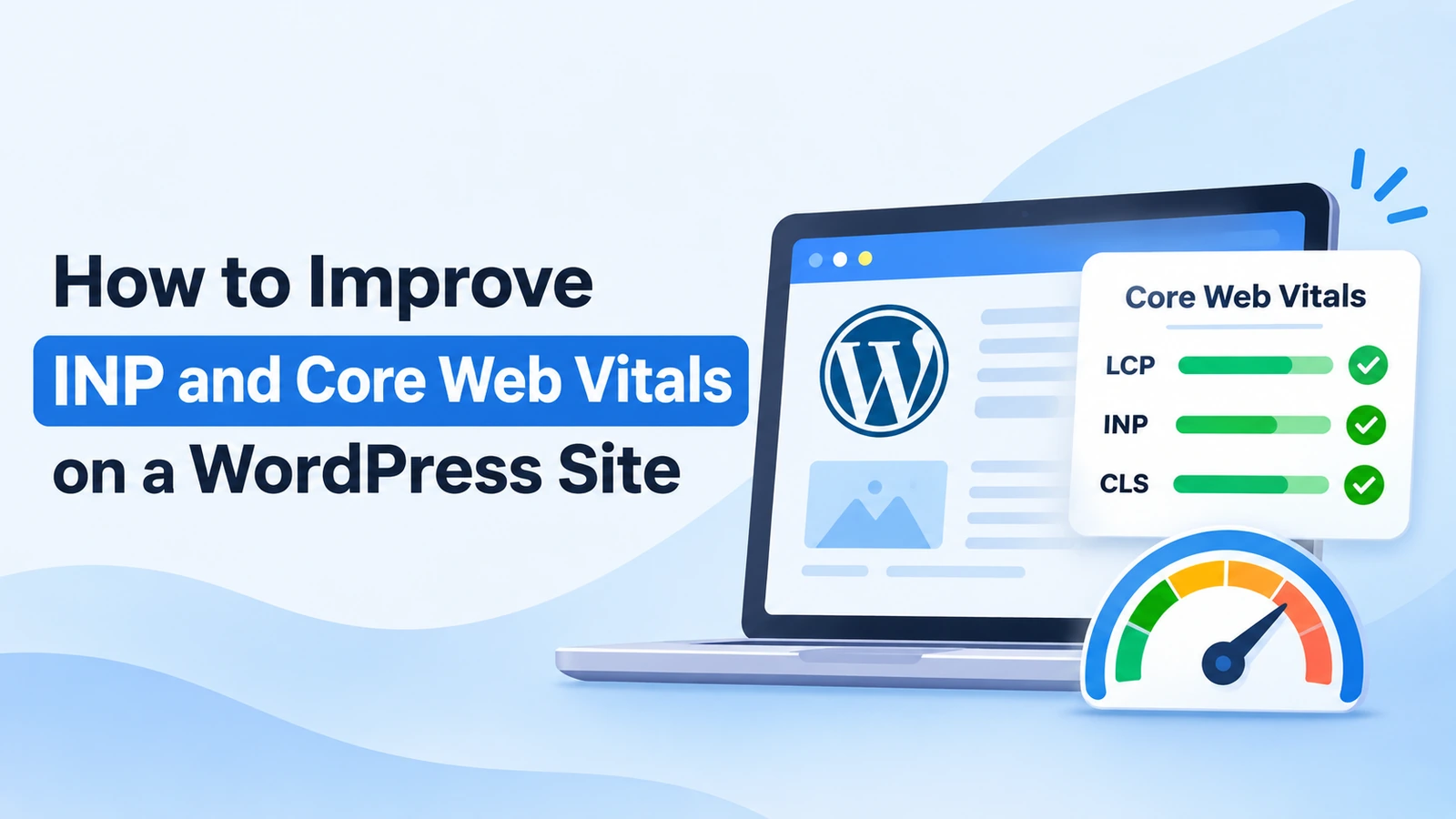
Google currently uses three Core Web Vitals:
| Metric | What it tells you | Good result |
|---|---|---|
| Largest Contentful Paint (LCP) | How quickly the main visible content appears | 2.5 seconds or less |
| Interaction to Next Paint (INP) | How quickly the page responds after an interaction | 200 ms or less |
| Cumulative Layout Shift (CLS) | How stable the page remains while loading | 0.1 or less |
These numbers are useful, but don’t treat them as three independent scores that you can fix with three plugin settings.
The same script can affect more than one metric. A heavy advertising script, for example, might keep the main thread busy and hurt responsiveness while also inserting an ad that causes the layout to move.
Check the Real Problem Before Optimizing
One of the easiest mistakes to make with WordPress performance is changing five things before you know what was wrong.
You install a cache plugin, enable JavaScript delay, convert every image to WebP, combine CSS files, remove Google Fonts, and then PageSpeed improves. Great—but now you don’t know which change mattered, and you may not notice that your contact form stopped working.
Start with PageSpeed Insights and your Core Web Vitals report in Google Search Console.
There are two kinds of data you’ll commonly see:
- Field data comes from real Chrome users where enough data is available.
- Lab data is produced by a controlled test and is more useful for debugging a particular page.
Don’t be surprised if they disagree. Your laptop on a fast connection is not the same as a visitor using a mid-range phone on mobile data.
I would test the affected page a few times before making changes. If INP is the problem, move to Chrome DevTools rather than immediately trying to optimize every image on the site.
Why INP Is Often Difficult on WordPress
INP measures responsiveness after someone interacts with the page.
That could be clicking a menu, opening a search box, selecting a filter, submitting a form, expanding an accordion, or typing into an interactive field.
The browser has to process that interaction and display the next visual update. If its main thread is already busy running JavaScript, your click has to wait.
On WordPress, there is rarely just one JavaScript file. A normal page can include code from the theme, plugins, analytics, consent software, ads, social widgets, embeds, and whatever custom scripts have been added over the years.
That is why I would start by asking a simple question:
What is the browser doing at the moment the slow interaction happens?
Chrome’s Performance panel can answer that much better than a generic “optimize JavaScript” warning.
Find Long JavaScript Tasks
Open Chrome DevTools, go to the Performance panel, start a recording, and perform the interaction that feels slow.
Maybe that means opening your mobile navigation. Maybe it’s clicking the search icon or typing into a live-search field.
Look for long pieces of main-thread work around that interaction.
If a script occupies the main thread for hundreds of milliseconds, the browser cannot respond to new input during that time. It does not matter whether the slow code belongs to your theme or a third-party service—the visitor still experiences the delay.
Google’s INP documentation goes into much more detail about this, including input delay, event-handler time, rendering work, and long tasks. The official INP guide on web.dev is worth keeping open while you’re debugging.
Don’t Load JavaScript You Don’t Need
This sounds obvious, but it is usually more effective than trying to make unnecessary JavaScript execute slightly faster.
Take a look at the features your WordPress site actually uses.
Do you still need the old social-sharing plugin? Is a slider library loading on posts that contain no slider? Does your form plugin load assets across the whole site even though the form only exists on the contact page?
Plugins are not automatically bad for performance. A small plugin that does one job efficiently may have almost no noticeable effect. The problem is assuming that plugin count alone tells you anything useful.
Look at what each plugin loads on the frontend and what happens when visitors interact with it.
Third-Party Scripts Deserve Extra Attention
Some of the slowest JavaScript on a WordPress site may not come from WordPress at all.
Advertising, analytics, embedded media, chat widgets, social media scripts, and consent tools all add work that your browser has to process.
If a script isn’t needed during the initial page load, delaying it can help. But I would be careful with optimization plugins that offer a single “delay all JavaScript” switch.
That can improve a lab score while quietly breaking something visitors need.
After changing script-loading behavior, test menus, search, forms, analytics, cookie consent, advertisements, and anything else that depends on JavaScript.
A Large DOM Can Make Interactions More Expensive
JavaScript isn’t the only work involved in an interaction.
After the script runs, the browser may still need to recalculate styles, perform layout, and paint the updated page.
This becomes more expensive when the page contains a very large or deeply nested DOM.
Page builders can make this especially noticeable. A heading that looks simple in the editor may sit inside several containers, columns, wrappers, and decorative elements.
I wouldn’t start deleting wrappers just to reduce a number in DevTools, but if a page has become unnecessarily complicated, simplifying the structure can help both maintenance and rendering performance.
Give Users Feedback Before Doing Heavy Work
Sometimes an interaction genuinely needs to do a lot of work.
Imagine a product filter that processes hundreds of items or a live-search field that makes a request after every keystroke.
Don’t make the browser do all of that before showing any visual response.
Where appropriate, debounce repeated input, break large tasks into smaller pieces, and update the interface before starting expensive secondary work.
This is much closer to the real goal of INP: the page should feel responsive when someone uses it.
Now Check LCP
If INP is about responsiveness, Largest Contentful Paint (LCP) is mostly about how quickly the main visible content arrives.
On a blog, the LCP element is often the featured image or a large heading near the top of the article.
PageSpeed Insights will usually tell you which element it identified as the LCP candidate. Don’t guess.
If the Featured Image Is the LCP Element
Start with the obvious things.
Don’t serve a 3000-pixel-wide PNG when the image is displayed at 900 pixels. Compress it properly and use a modern format such as WebP or AVIF where it makes sense.
The featured image above the fold also should not normally be treated like an image halfway down the article. Lazy-loading an important LCP image can delay its discovery and make the result worse.
Images further down the page are a much better place for lazy loading.
Don’t Forget the Server
You cannot optimize your way around an extremely slow first response from the server.
WordPress still has to run PHP, query the database, execute plugin and theme code, and generate the response unless a cached copy can be served.
This is where page caching and decent hosting matter.
If you’re working with a basic hosting account, our older guide on setting up WordPress on shared hosting covers the kind of environment many smaller WordPress sites still start with.
That link belongs here because hosting and server configuration genuinely affect the time before the browser can begin rendering the page. I wouldn’t place it elsewhere in this article just for internal-link count.
Fix Layout Shifts Instead of Hiding Them
CLS is usually the easiest Core Web Vital to recognize visually.
You’re reading the article, something loads above you, and the text suddenly moves.
Images, advertisements, embeds, banners, and fonts are common reasons.
Images Need Dimensions
WordPress normally includes image dimensions when you insert media through the editor. That lets the browser reserve the correct amount of space before the file finishes downloading.
Problems tend to appear with custom HTML, theme templates, embeds, or plugins that output images without reserving space.
Ads Need Space Too
This matters particularly on monetized blogs.
If an ad slot starts at zero height and grows after the advertisement loads, everything underneath it moves.
Where your advertising setup allows it, reserve a sensible amount of space for the slot before the ad arrives.
That won’t remove the cost of loading advertising scripts, but it can prevent one of the more annoying layout shifts.
Fonts Can Shift Text
A web font that appears late can replace the fallback font after the page has already been drawn.
If the two fonts have different dimensions, lines can wrap differently and nearby content may move.
Avoid loading font families and weights you never use. If you’re loading several 300, 400, 500, 600, and 700 variants for a design that only uses 400 and 700, that’s an easy place to simplify.
Caching Is Important, but It Isn’t a Magic Fix
Caching advice is everywhere in WordPress tutorials for a reason. Serving a cached page can dramatically reduce server work.
But caching won’t fix a slow menu handler.
It won’t stop an advertisement from shifting the page.
And minifying a badly behaved JavaScript file does not suddenly make its expensive logic disappear.
Use caching for what it is good at: reducing repeated server work and getting the page to visitors sooner.
Be Careful With WordPress Optimization Plugins
A good performance plugin can save a lot of work. It can handle page caching, lazy loading, image formats, script loading, font optimization, and other repetitive tasks.
The problem starts when several optimization plugins are installed at the same time and all try to control the same files.
If your hosting already provides server-level caching, for example, you may not need another plugin creating a second caching layer with overlapping settings.
I would make one significant change at a time and test afterward.
Performance work becomes much harder when you can’t tell which setting caused the improvement—or the new bug.
Your Theme Still Matters
A theme determines a large part of the HTML, CSS, and JavaScript visitors receive.
That does not mean you should switch themes every time PageSpeed complains.
If you’re using a theme such as OceanWP, first look at what you have enabled. Extensions, extra scripts, icon libraries, sticky elements, animations, and other optional features can add up.
Disable what you genuinely do not use before rebuilding the entire site around another theme.
What I Would Fix First
If I opened a WordPress site today and Search Console showed poor Core Web Vitals, this is roughly the order I would work in:
- Check which metric and which group of pages are failing.
- Test one affected page in PageSpeed Insights.
- Identify the actual LCP element rather than guessing.
- If INP is poor, record a real interaction in Chrome DevTools.
- Remove unnecessary scripts and plugins before trying to optimize them.
- Check advertisements, images, embeds, and fonts for layout shifts.
- Review caching and server response time.
- Test again before making another large change.
That order isn’t a universal recipe. It simply keeps you focused on evidence rather than switching settings at random.
Don’t Obsess Over a Perfect PageSpeed Score
A 100 score looks nice in a screenshot. It isn’t the real objective.
A useful site may legitimately load analytics, advertising, comments, forms, or other functionality that adds some performance cost.
The question is whether those features provide enough value to justify that cost and whether they can be implemented without making the page frustrating to use.
I would rather have a stable, responsive WordPress site scoring in the 90s than a fragile site scoring 100 because every useful script has been delayed until something stops working.
Final Thoughts
Core Web Vitals optimization gets easier once you stop treating it as one big “make WordPress faster” problem.
If LCP is poor, find out what is delaying the main content. If CLS is poor, find what is moving. If INP is poor, record the slow interaction and see what is keeping the browser busy.
Measure first, change one thing, and measure again.
It is not as exciting as installing a plugin that promises an instant 100/100 score, but it gives you a much better chance of ending up with a WordPress site that is genuinely faster for the people using it.